Pastal

Your PS5.On Vision Pro.

Stream from your own PS5 to a screen you can move, curve, or turn into a private cinema.

Free download. A paid licence is required to install on Vision Pro.

PS5 Remote PlayvisionOS 26 & 27macOS installer (.dmg)

Fine-tune your game screen.

Start in a window alongside your room, dim your surroundings, or switch to a fixed cinema screen.

Picture and depth

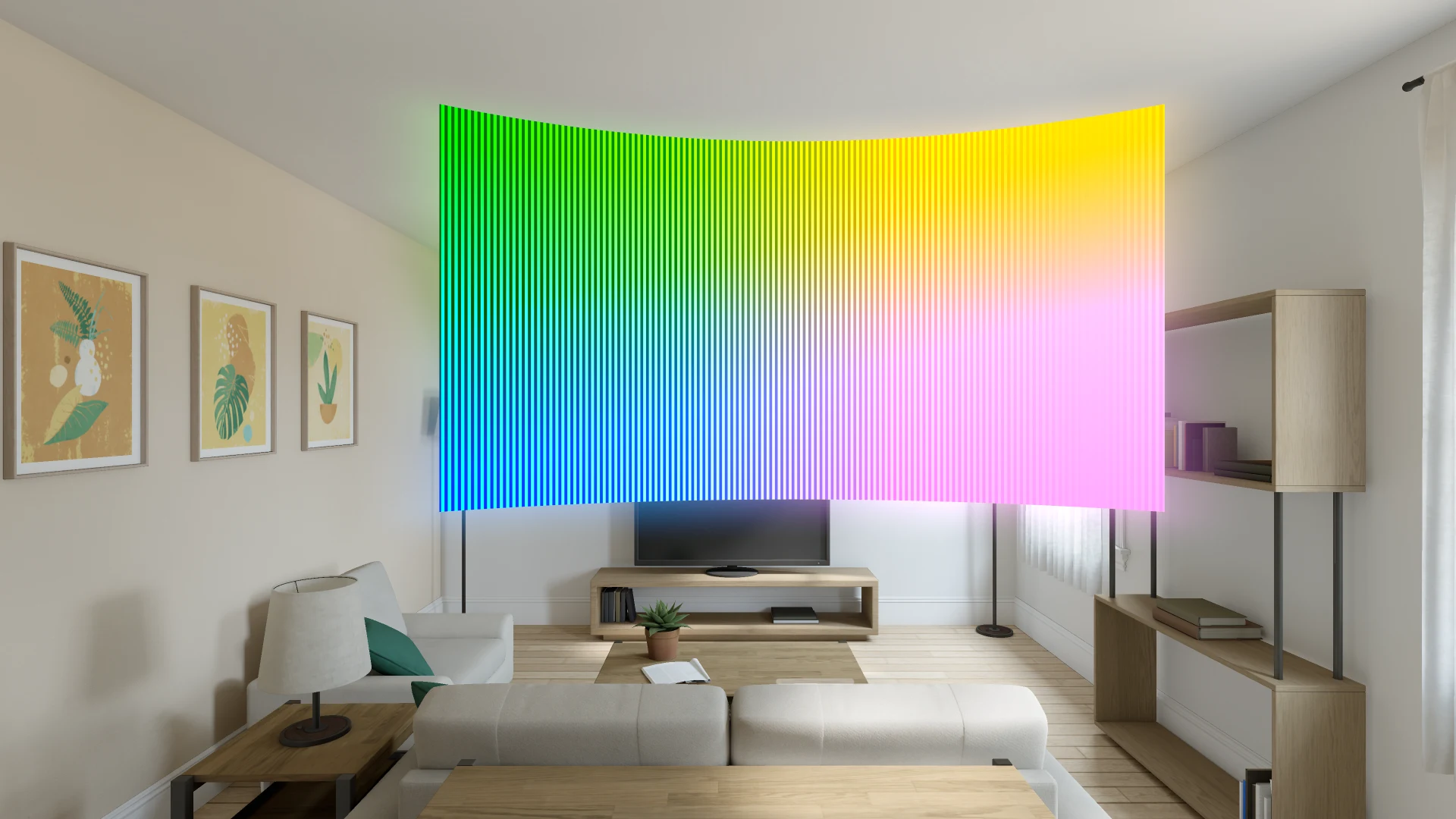
Adjust screen curvature, brightness and sharpening. Try HDR, ambient lighting, or optional live 3D with adjustable depth.

MetalFX upscaling

Use the original stream or upscale to 1440p or 4K on Vision Pro. The PS5 sends up to 1080p.

DualSense and remote play

Connect over your home network or sign in to PlayStation Network to play away from home. Pair your DualSense with Vision Pro for haptic feedback.

All features

Screen and surroundings

  • Move and resize a flat or curved screen, and adjust the strength of the curve.
  • Play with your room visible, dim the surroundings, or enter a dark cinema mode. A dedicated cinema screen stays fixed in space and has its own size control.
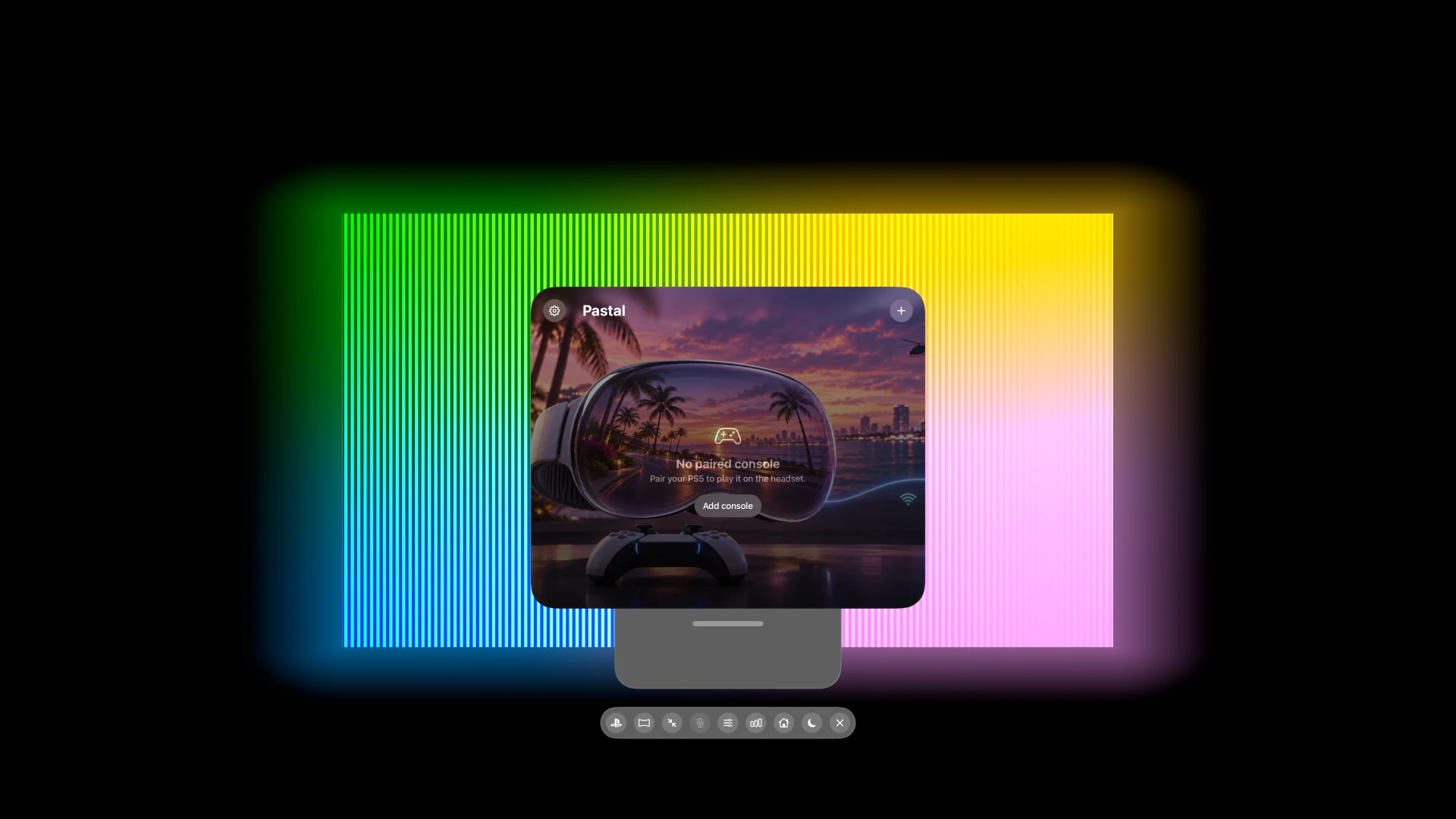
  • Add an adjustable glow that follows the colours at the edges of the game.
  • Choose from 12 backgrounds for the Pastal console screen.

Image and performance

  • Stream up to 1080p from PS5, with 1440p or 4K MetalFX upscaling on Vision Pro.
  • Adjust brightness and sharpening as you play, with a blue-light reduction mode and a retro CRT effect.
  • Enable HDR with compatible PS5 settings. Changing HDR reconnects the stream.
  • Turn on live stereoscopic 3D with adjustable depth, or choose more accurate depth alignment at the cost of extra latency.
  • Choose optional 90 or 120 fps frame generation on compatible hardware in SDR. Low-latency mode uses a shorter audio buffer and turns off frame generation and precise 3D.

Controller and sound

  • Pair a DualSense for haptic feedback and adaptive triggers, with adjustable feedback intensity. Bluetooth haptics are simpler than on the console.
  • See controller connectivity and battery level. Forward touchpad swipes optionally, or map a paired keyboard to controller input.
  • Enter text on the PS5 from the headset. Toggle the headset microphone for voice chat.
  • Choose automatic, wide, or direct sound. Direct preserves the console’s headphone audio processing.

PS5 connection and controls

  • Pair your PS5 on your home network using its IP address and pairing code. Play over the internet with PlayStation Network sign-in.
  • See console status, wake a PS5 from rest mode, put it back to sleep, and optionally connect to the last-used console at launch.
  • Use the in-game toolbar for the PS button, screen mode, surroundings, microphone, picture settings and stream stats.
  • Adjust stream bitrate and view resolution, frame rate, bitrate, packet loss, and initial round-trip latency.
  • Use Siri and Shortcuts to launch the last-used console or wake it.

PlayStation profile

  • See your PlayStation Network avatar, recent games, play history and trophy progress after signing in.
  • Pair and manage consoles from your library, and view notifications for new trophies when available.

Pastal Installer for Mac

  • Check Xcode, visionOS support, disk space, Apple Account, signing, headset pairing and Developer Mode.
  • Build and sign Pastal locally, then install it on the paired Vision Pro.
  • Renew the app when its signing profile expires and copy diagnostics for troubleshooting.
  • Automatically check for Mac installer updates at launch and choose when to apply them.

From your Mac to Vision Pro.

You’ll need an Apple silicon Mac, macOS 15.6 or later compatible with your Xcode version, Xcode 26 or later with visionOS support, at least 8 GB free, a Vision Pro, and a PS5 with Remote Play enabled. We’ve tested and used Pastal on visionOS 27. It also works on visionOS 26.

  1. Open the Mac installer

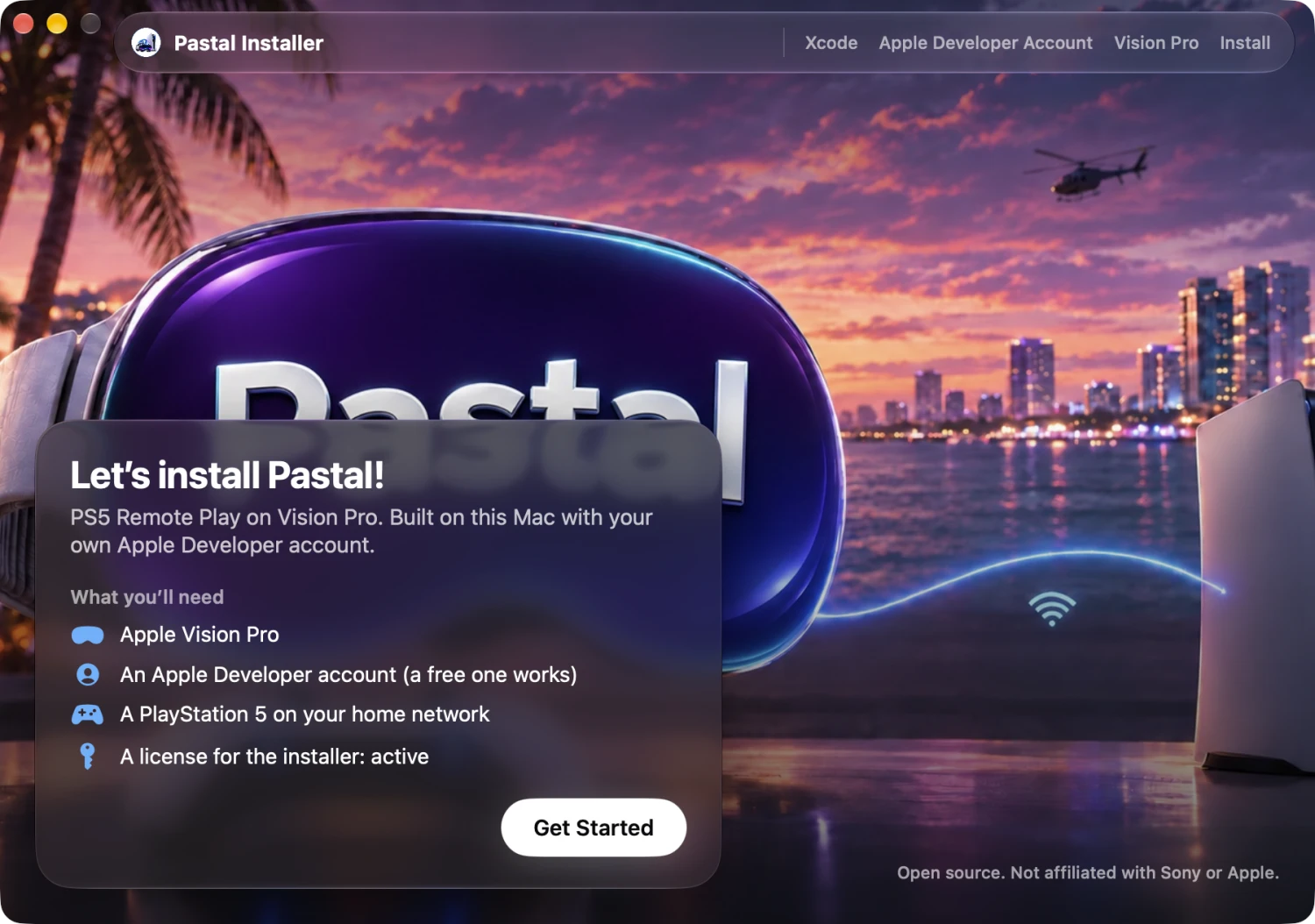
    Download the DMG, move Pastal Installer to Applications, open it on your Mac, and enter your licence key.

  2. Set up signing and pair the headset

    Sign in to Xcode with your Apple Account, pair your Vision Pro with the Mac, and enable Developer Mode. Pastal Installer builds and signs the app on your Mac.

  3. Pair your PS5 and play

    Launch Pastal on Vision Pro and link your console. Pair a controller with Vision Pro.
Installer update checks

Pastal Installer checks for a newer Mac installer when it starts. If a compatible version is available, it shows what’s new and lets you update now or choose Later.
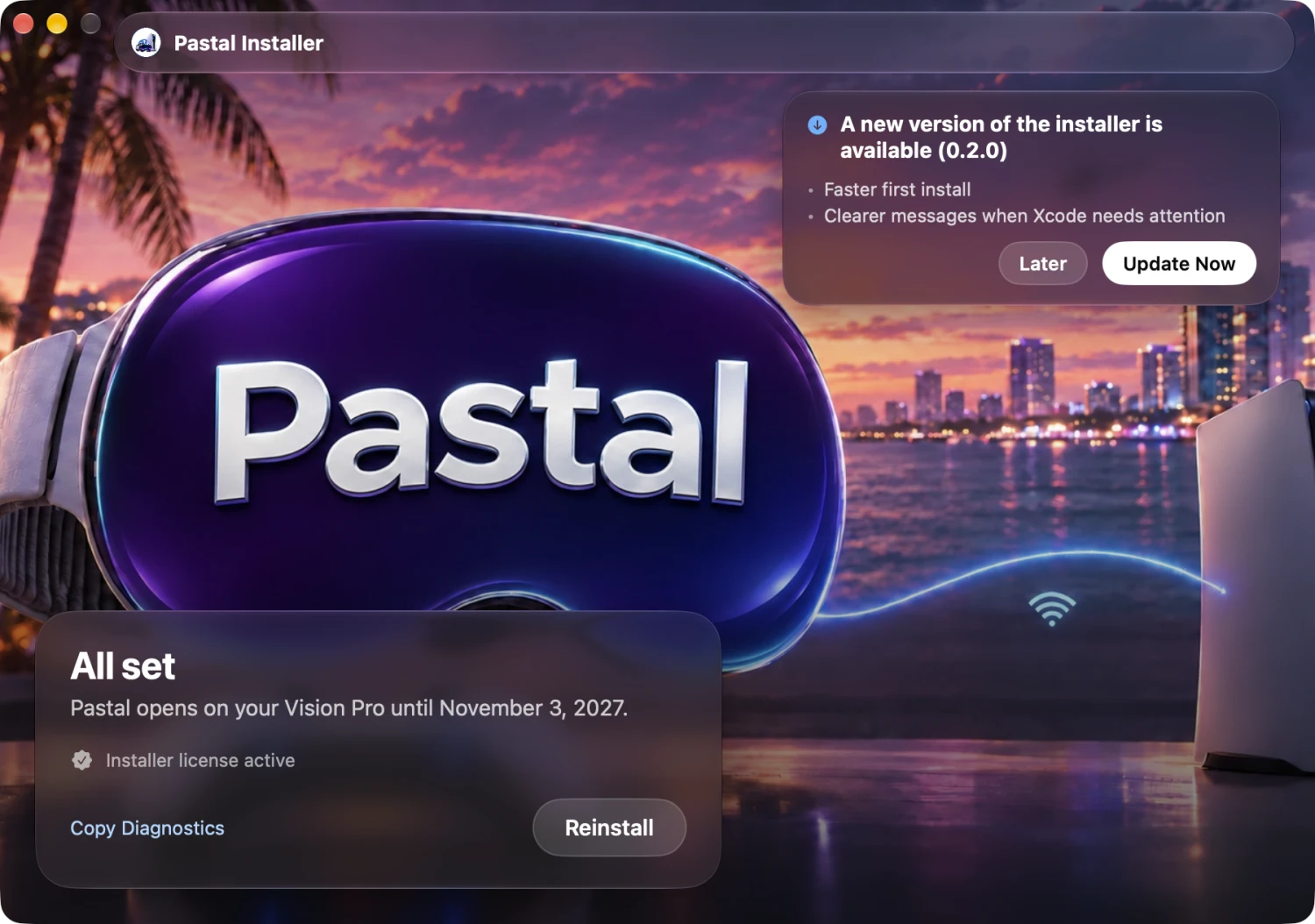
Pastal Installer showing a newer version with Later and Update Now options
Example of an update prompt in Pastal Installer

Download Pastal Installer

Downloading the Mac installer is free. When you install Pastal on your Vision Pro, the Mac installer will ask you to purchase and activate a licence.

Frequently asked questions

Do I need an Apple Developer Program membership?

A free Apple Account can be used via Xcode. The free signing profile lasts seven days. Use Pastal Installer to renew it.

Can I play away from home?

Yes, with PlayStation Network sign-in and Remote Play enabled on your PS5. Performance depends on the connection at both ends.

Does 4K mean a native 4K stream?

Vision Pro can upscale the PS5’s stream to 4K with MetalFX. The console sends a stream at up to 1080p.

Where do I purchase a licence?

Open Pastal Installer on your Mac and choose “Buy a License”. One licence works on up to three Macs.